Posts in Technology
Encryption and iCloud Backups

Until recently, I was under the impression that iCloud backups were protected by end-to-end encryption. Devastatingly, this is not the case.

Apple does use end-to-end encryption for some data stored in iCloud, but this does not include device backups, and it also doesn’t include a lot of the information stored separately from your backups — including notes, photos, calendar events, Safari bookmarks and tabs, contacts, or Messages in iCloud — though they do protect the rest of it with standard encryption. The things they do use end-to-end encryption for include home data, health data, stored passwords, payment information, and learned keyboard vocabulary, which are the most sensitive types of data stored in iCloud.

The fact that Apple doesn’t protect all of your data with end-to-end encryption doesn’t necessarily mean your data is at great risk. The standard encryption is strong enough to keep bad actors from accessing it; you don’t need to worry about Apple getting hacked or anything along those lines, but the difference between standard encryption and end-to-end encryption is still a big deal. Put simply, end-to-end encryption means that the only key that can unlock your data resides with you, in the form of a password, while with standard encryption, you have your key, but Apple also keeps a key in case you lose yours. The upside of Apple keeping a key is that if you do lose yours, they can help you get your data back, but the downside is that they could be persuaded to share their key with the government if subpoenaed. With end-to-end encryption, you’re the only one who has a key, so it’s inherently safer, but if you forget your password, then you lose the data and nobody in the world can help you.

Apple apparently considered using end-to-end encryption for iCloud backups a few years ago, but decided not to do so at the time. If this is true, it’s a major loss for consumer privacy. While many people may not care about having fully protected iCloud backups, it would be nice if we at least had the option. You can fully encrypt backups to a Mac or PC, but it’s much more cumbersome to connect your device to a computer to back it up when iCloud could be doing it for you automatically.

As pointed out by John Gruber on Daring Fireball, Tim Cook’s comments in a 2018 interview (with a German publication — here’s a translated copy) indicated that users would soon be able to employ end-to-end encryption to protect their iCloud backups. Hopefully, this is the case, and hopefully that option comes soon.

It’s a shame that Apple has left this door open, and it seems downright irresponsible for them to just ignore it. Though they’re already leagues ahead of all their competition, they need to be doing all they can to differentiate themselves from companies like Google if they’re going to continue to market themselves as the privacy company. Unfortunately, until all iCloud data (backups, notes, photos, etc.) is end-to-end encrypted, true privacy and security are but myths for anyone who uses iCloud.

PSA: You Need A Stronger iPhone Passcode

This story for The New York Times by Jack Nicas is primarily about the Pensacola shooter’s iPhone, (a story that we commented on a few days ago to highlight the danger of the FBI’s public attack on encryption), but it raises another good point about device security. Machines exist that are capable of unlocking Apple devices via a brute force method that tricks the iPhone or iPad into allowing an unlimited number of passcode attempts in quick succession. Essentially, this means that one of these devices could break into your phone in as little as a few minutes.

A four-number passcode, the previous default length, would take on average about seven minutes to guess. If it’s six digits [the current default length], it would take on average about 11 hours. Eight digits: 46 days. Ten digits: 12.5 years.

If the passcode uses both numbers and letters, there are far more possible passcodes — and thus cracking it takes much longer. A six-character alphanumeric passcode would take on average 72 years to guess.

The point is that you need to use a strong passcode if you want to truly protect yourself from brute force threats like those posed by anyone in possession of one of these aggressive little boxes, whether that’s law enforcement or an individual will ill intent who manages to get their hands on one of them. Apple does all they can to fix bugs that allow these devices to work, but there’s only so much they can do: security is a cat and mouse game, and you’ve gotta look out for yourself. I’ve been using a seven digit alphanumeric passcode for about two years, and it hardly takes any longer to punch in than the six digit passcode you’re probably already using. Plus, if you’re using Touch ID or Face ID, you probably don’t type in your passcode most of the time when you unlock your device anyway.

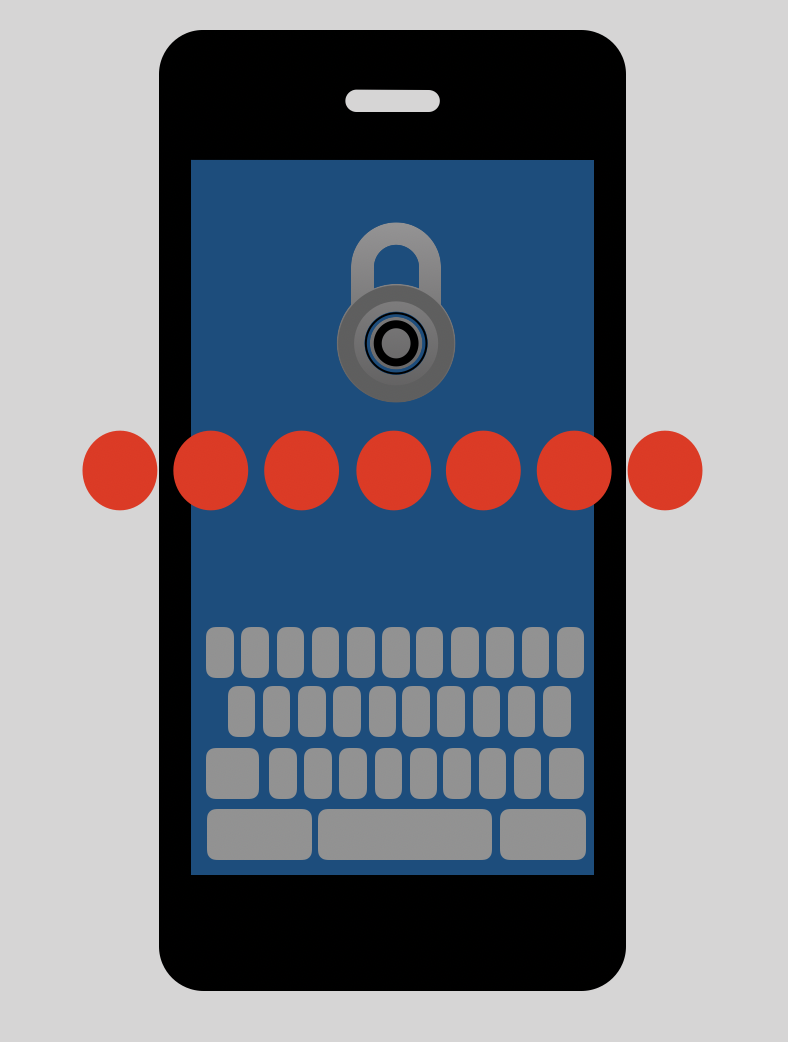
To set up an alphanumeric passcode on your iOS device, open Settings → Face ID & Passcode (it may say “Touch ID & Passcode”, depending on what device you have). It will then prompt you to enter your current password. After you’ve punched it in, tap “Change Passcode”. It will prompt you to enter your passcode again, and then slide to the next screen where you can either enter a new passcode. Above the keypad, tap “Passcode Options”, and select “Custom Alphanumeric Code”. This will allow you to set up a passcode that uses a combination of numbers and letters: be sure to include at least one of each, maybe an uppercase letter, and shoot for at least 6 characters. After you enter the new passcode, it will have you confirm it, and then you’re done! Congrats, you just protected your iPhone for about 70 years worth of underhanded, illegitimate, brute force passcode attempts.

PSA: The FBI Wants To Crack Your iPhone's Passcode

This is a classic case of same story, different day. If you recall, in the wake of the San Bernardino shooting in 2015, the FBI had a showdown with Apple where they wanted Apple to give them access to the shooter’s iPhone 5c, which was locked with a passcode. Apple provided what help they could, but stopped short of doing what the FBI ultimately asked them to do, which was build a backdoor that would’ve let them in.

Now, in the wake of the Pensacola shooting, the FBI is again asking Apple to unlock a device for them. Apple has provided all of the data they can, including information from the shooter’s iCloud account, but they are again refusing to build the FBI a backdoor.

The technological aspects of this can be quite confusing, but put simply, the type of encryption that Apple uses to secure iPhones and iPads prevents anyone who doesn’t have that device’s passcode, including the FBI and Apple itself, from being able to access the contents of that device. There is no backdoor, there is no secret key. They do not exist.

While it would be possible for Apple to build a key that would let the FBI in, it would be inexplicably dangerous. It would require Apple to build an altered version of iOS which could then be installed on a device that law enforcement wants to unlock. Apple’s concern is that if such software was created, law enforcement could take advantage of it, a rogue operative could get access to it and then spread it around on the dark corners of the internet, etc. There are an infinite number of ways that the existence of such software could destroy the security of every iPhone and iPad in the world. In essence, if Apple creates software to get around the passcode of this one device, that same software could be used to get around the passcode on YOUR device. Apple CEO Tim Cook described such a version of iOS as the “software equivalent of cancer”.

The FBI is framing this in a way that makes it sound like they don’t want a magic key, they just need into this one device. They keep asserting that they don’t want a backdoor. But the problem is that, essentially, they’re still asking for a backdoor. They’re getting deep into the semantics to try and move public perception to their favor. In any case, what they call it doesn’t matter, because what they want is a master key. Once that master key is created, it’s out there forever, and your device’s passcode has been cracked, too.

Those who would give up essential Liberty, to purchase a little temporary Safety, deserve neither Liberty nor Safety.

— Benjamin Franklin

Facebook Lies About Paying For Article About How Trustworthy They Are

John Gruber, on Daring Fireball:

An utterly uncritical story on Facebook’s anti-disinformation team appears on Teen Vogue with no byline but no “sponsored content” label. Then Sheryl Sandberg links to it approvingly. Folks at Facebook deny it’s sponsored content, including those profiled in the story. Then the article disappears from Teen Vogue. Then it reappears with a “sponsored content” label. Then it disappears again.

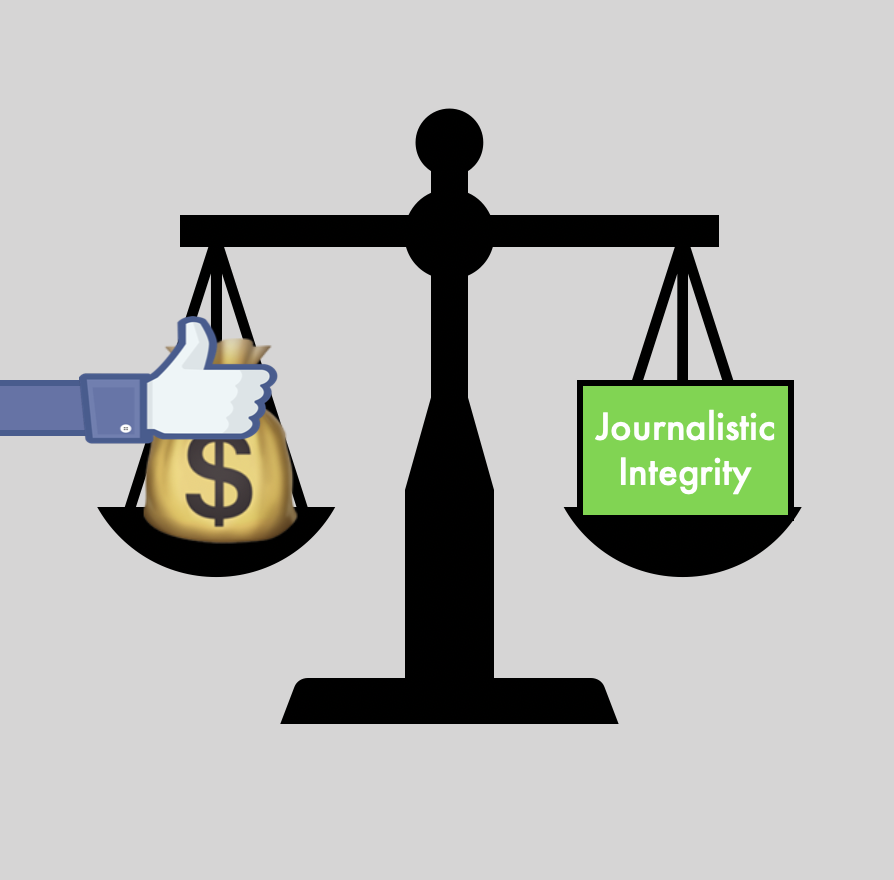
Facebook payed Teen Vogue to write an article hyping up how trustworthy Facebook is, and then lied about whether they had paid for it. A great look for Facebook and Teen Vogue. The hypocrisy is remarkable.

#deletefacebook

Lenovo Makes The First Folding-Screen Laptop, For Whatever That's Worth

Lauren Goode, writing for Wired:

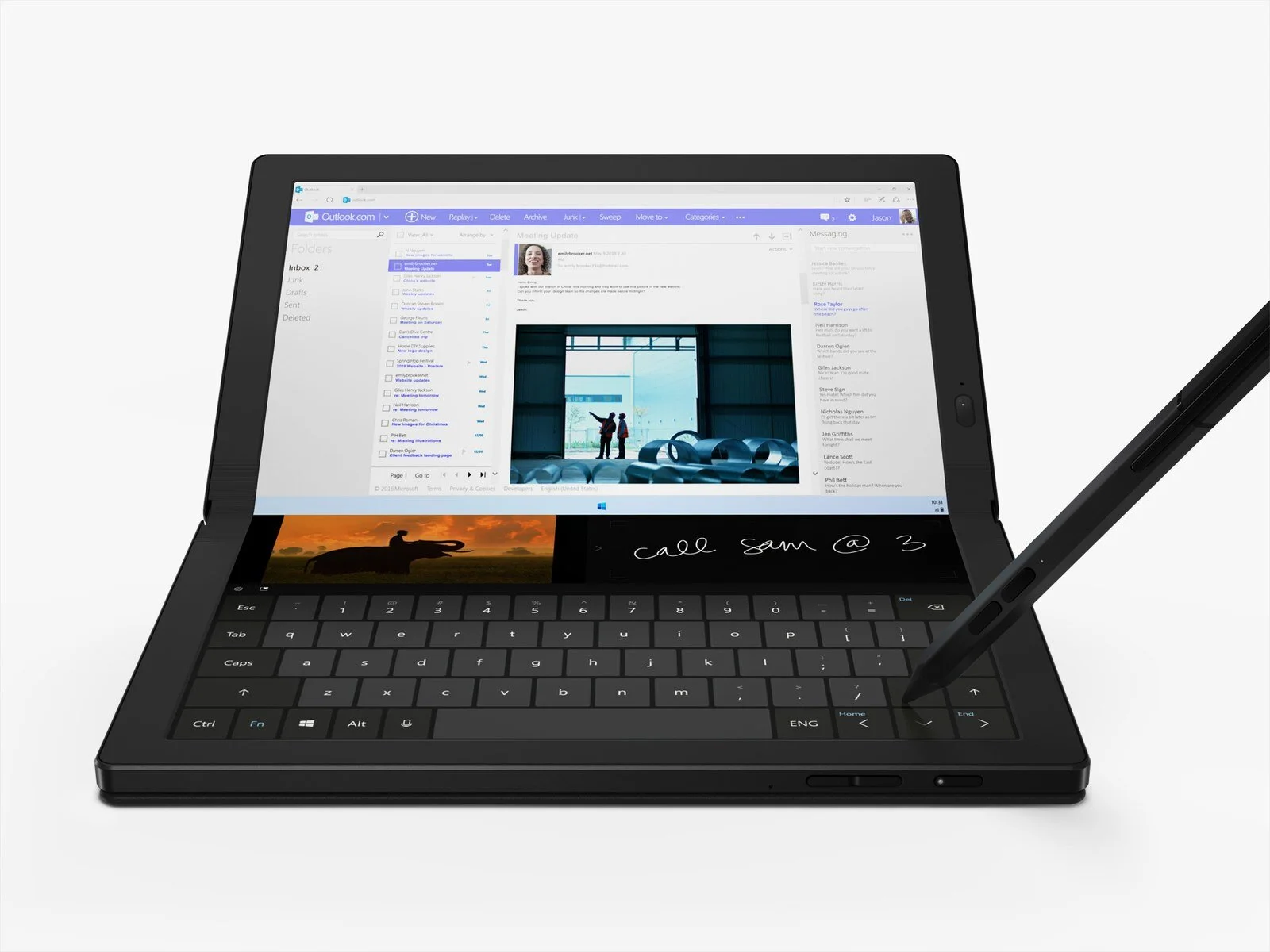
The ThinkPad X1 Fold is expected to ship sometime in mid-2020, and will start at $2,499.

So far, I haven’t seen a compelling use case for foldable displays,* and certainly nothing worth $2,500 to a consumer.

The problem here is that two handed typing on a touchscreen keyboard kinda sucks. Even when it’s done well, its finicky and less precise than a hardware keyboard. If a horizontal touchscreen with a software keyboard and trackpad were good input methods, we’d already have laptops with horizontal screens: the fact that we couldn't, until now, bend the display at the device’s hinge to make one continuous screen from the horizontal to vertical surfaces was never an issue. This Lenovo thing is solving a problem that nobody has.

What I want is not a laptop with a horizontal screen. In my mind, a better solution would be something along the lines of Apple’s Touch Bar, but more expansive. I think it would be useful to have tiny displays, e-ink or otherwise, on each key of a keyboard so that they could change dynamically (they could adapt to show different characters to work with any language, show emojis, present app-specific controls, etc.). This would allow a much greater degree of flexibility while maintaining the tactile benefits of discrete, moving buttons.

*One legitimate (though not exactly consumer facing) use case for foldable displays that very few people know exists but which many benefit from: the iPhone X.

Samsung Steals Apple's Face ID Symbol

John Gruber’s take from Daring Fireball:

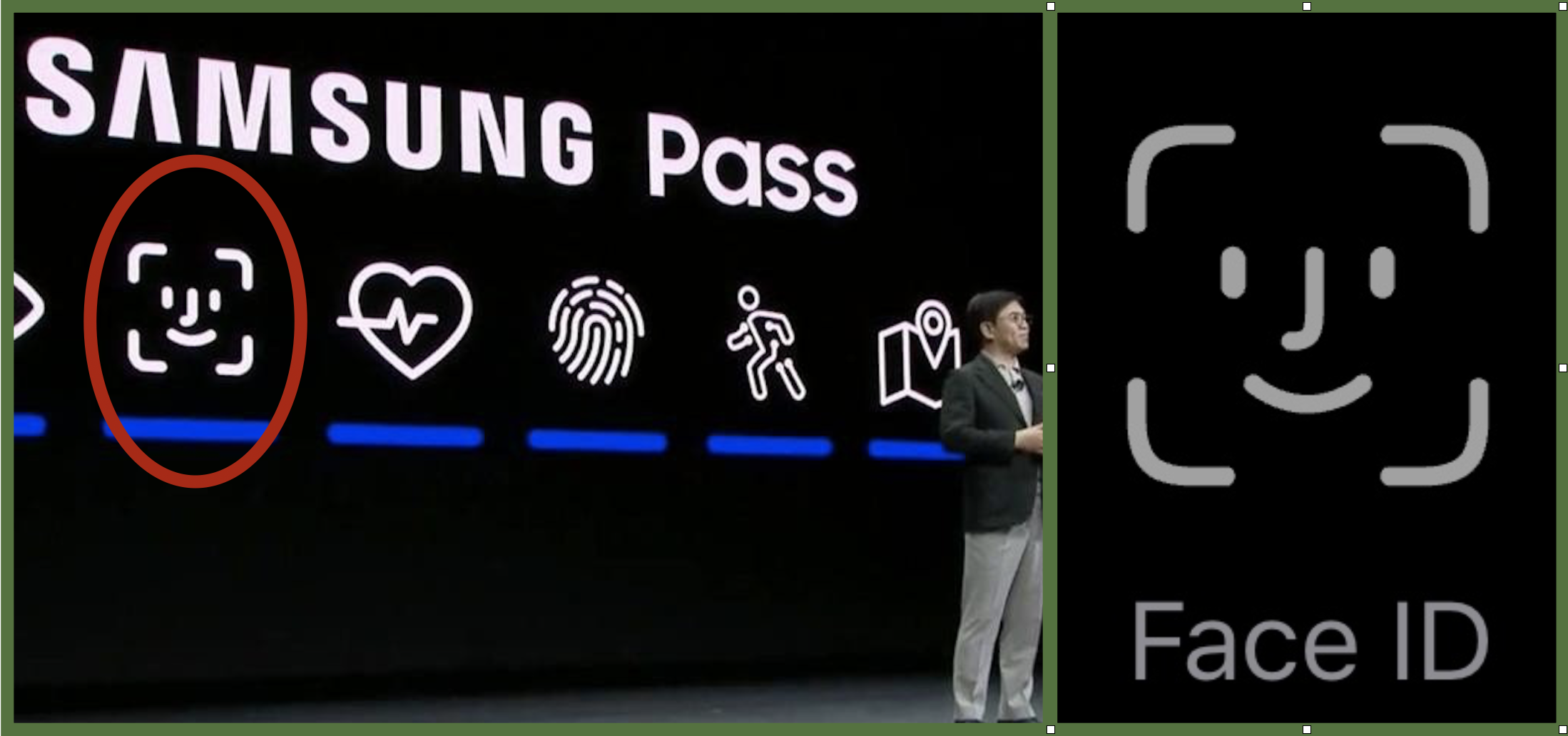
They didn’t even tweak it. Just outright copy-and-paste. […]

They might as well use an apple with a bite out of it, too.

Here’s the logo Samsung used on stage at CES on the left, with Apple’s Face ID symbol on the right.

Screen Shot 2020-01-07 at 7.44.33 PM.png
 

I suppose it’s just a cultural difference, but these Asian companies are absolutely shameless when it comes to stealing intellectual property. Gross.

Apple Completes Rollout of Updated Maps

Apple’s updated maps are very nice, and you can tell they put a lot of time into really making them better. There’s a ton of detail in the landscaping and buildings that simply didn’t exist before.

After releasing a few services this year that were a bit less impressive than they were hyped up to be, I’m glad Apple was able to make good on their promise to roll out the new maps to the whole United States by the end of 2019, even if my region was the last to be added.

Screen Shot 2019-12-31 at 8.44.43 PM.png

Here’s Pittsburgh as an example: check out the crazy level of detail, from all the buildings, to the public parks and and natural areas, to the fields at PNC Park and Heinz Field. It’s remarkable.

One Nation, Tracked

Fantastic reporting from Stuart A. Thompson and Charlie Warzel for The New York Times:

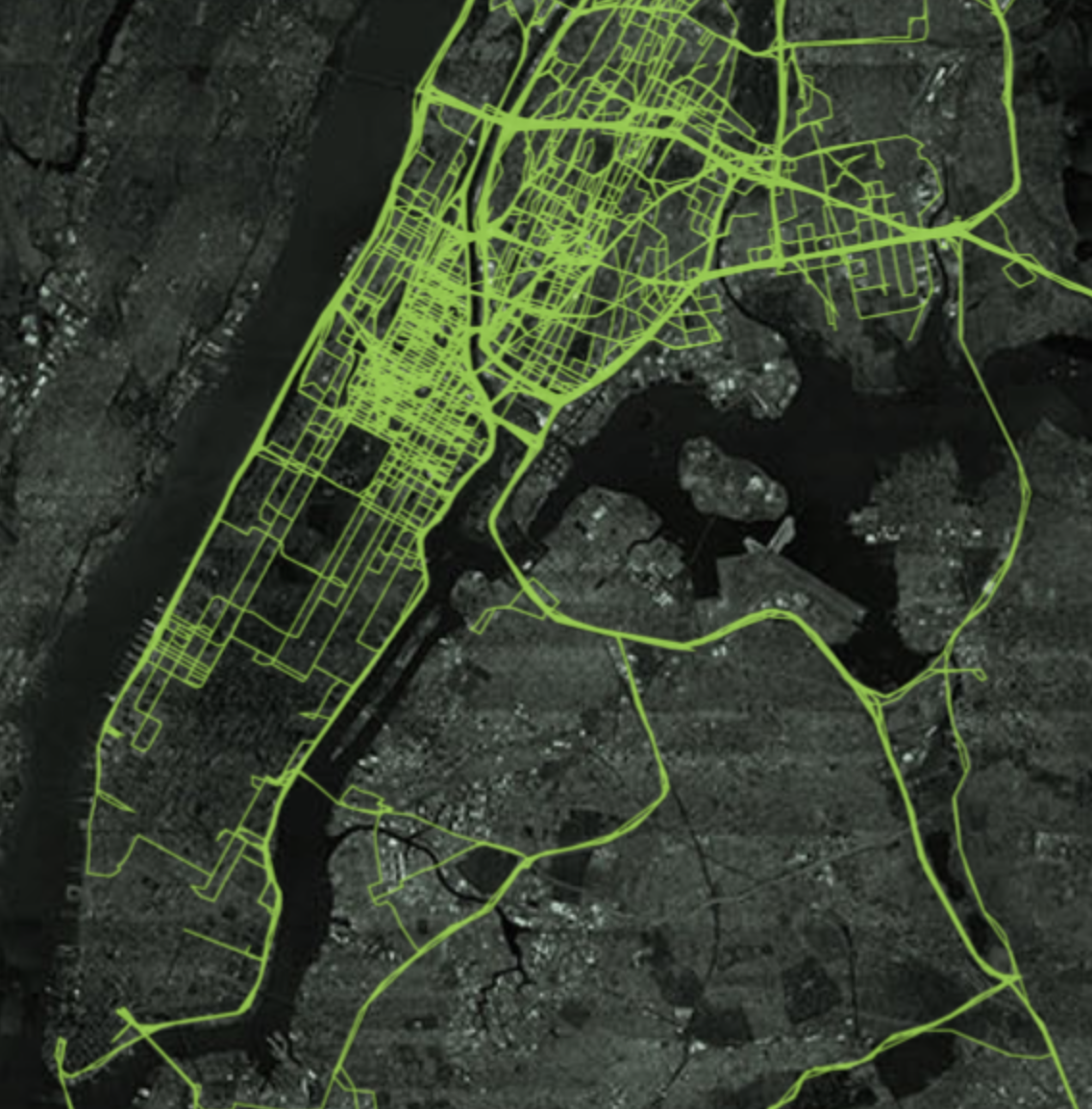
Every minute of every day, everywhere on the planet, dozens of companies — largely unregulated, little scrutinized — are logging the movements of tens of millions of people with mobile phones and storing the information in gigantic data files. The Times Privacy Project obtained one such file, by far the largest and most sensitive ever to be reviewed by journalists. It holds more than 50 billion location pings from the phones of more than 12 million Americans.

It’s about time that publications with big audiences start pounding this drum. Read their whole article, and begin to understand why this matters.

Location data is also collected and shared alongside a mobile advertising ID, a supposedly anonymous identifier about 30 digits long that allows advertisers and other businesses to tie activity together across apps. The ID is also used to combine location trails with other information like your name, home address, email, phone number or even an identifier tied to your Wi-Fi network.

The data can change hands in almost real time, so fast that your location could be transferred from your smartphone to the app’s servers and exported to third parties in milliseconds. […]

That data can then be resold, copied, pirated and abused. There’s no way you can ever retrieve it.

Unfortunately, there’s very little you can do to limit how your location data is shared. It’s important to wrangle in your location sharing settings (check out the “Privacy” section of CopyrightBro’s Digital Health Checkup), but even that isn’t enough to truly protect you. One of the best ways to limit companies’ ability to track you is to route all of your internet traffic through a VPN service. My family and I use ExpressVPN. These are paid services, but at $99/year for 5 devices (ExpressVPN’s best offer), it works out to 5¢ per device per day, which I think is worth the expense.

Is all of this surveillance and risk worth it merely so that we can be served slightly more relevant ads? Or so that hedge fund managers can get richer?

The answer here is obviously “no”. Targeted advertising is a user-hostile practice, and it deserves to be heavily regulated, if not outlawed entirely.

Today, it’s perfectly legal to collect and sell all this information. […] The companies profiting from our every move can’t be expected to voluntarily limit their practices. Congress has to step in to protect Americans’ needs as consumers and rights as citizens.

We are living in the world’s most advanced surveillance system. […] It was built to make money. The greatest trick technology companies ever played was persuading society to surveil itself.

Contact your lawmakers.

#deletefacebook

UPDATE: 12/31/19, 22:10;

As John Gruber points out on Daring Fireball, it is pretty hypocritical for The New York Times to publish such a piece while their own website is scraping up user data.

The 2019 Mac Pro & Pro Display XDR
Apple_mac_pro_new_display_final_cut_screen_060319_big.jpg.large_2x.jpg

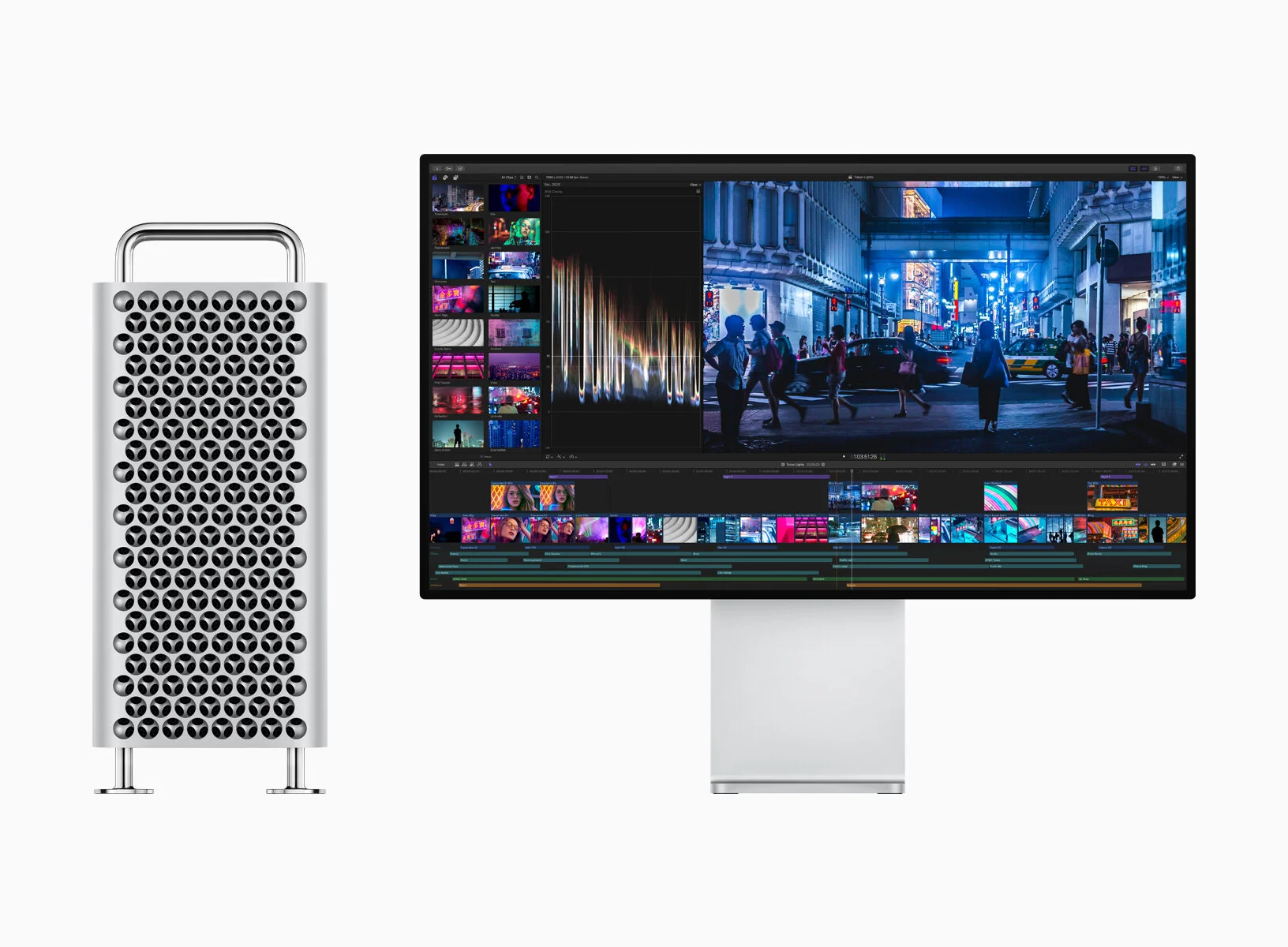
I would all but guarantee that nobody reading this will ever need Apple’s newly released Mac Pro and its accompanying display. This is the type of science fiction-y stuff tech nerds drool over, and it’s a momentous moment in the history of technological advancements, so despite the fact that very, VERY few people actually need it, it’s just a really cool, mind numbingly powerful beast of a computer, and I want my readers to know that it exists and appreciate the marvel of computing that Apple has managed to pull off. It’s so crazy that I’ve opted to place this post under the “magical nonsense” category, in addition to the obviously applicable “technology” category.

This machine is truly groundbreaking. Just to put some things in perspective, most PCs these days have processors with two or four cores; in the Mac Pro, you can get up to twenty-eight. Most PCs shipping right now will have either two, four, eight, or sixteen gigabytes of RAM. The new Mac Pro? Up to 1,500 gigabytes of RAM. It’s hard to imagine anything this machine couldn’t handle with ease. The price is, of course, equally mind boggling: it starts at $5,999 and maxes out at $53,799.

The display that they’re selling alongside the new Mac Pro, the Pro Display XDR, is also extremely impressive. It blows pretty much all current displays out of the water when it comes to metrics like brightness, contrast, color accuracy, clarity, etc., including professional displays like those used by filmmakers that cost 8x the price.

Despite all the incredible things Apple has packed into these two products, they have gotten a lot of criticism for some of their decisions made in regards to the pricing of accessories, which I think are valid criticisms. The stand for the display is sold separately, and costs a whopping $999, which is inarguably nuts. The Mac Pro itself has the option of shipping with stainless steel feet or wheels, and if you opt for the wheels, it’ll cost you an additional $399, which is laughable. However, I don’t think it matters too much overall; this whole product is almost just an instance of Apple showing off, and very pricy accessories grab more attention; given the unbelievable machine they've created, I think we should let them show off a bit.

That Facebook Accidentally Removed Elizabeth Warren’s Ads Is the Point

Brian Feldman, writing for Intelligencer:

The company’s current moderation system is designed to operate in an environment where context, often implied or not easily discernible to an outsider, does not matter. […]

Understanding this is the key to understanding why Big Tech is something to be concerned about. Even when it’s assumed to be operating in good faith and attempting to be fair, Facebook still makes the wrong call.

This story from March is hardly news, but it’s interesting and important because it highlights one of Facebook’s moral dilemmas that don’t get as much much focus as their privacy-related transgressions.

Historically, Facebook has been criticized for their content moderation and censorship practices (these criticisms largely revolved around the poor mental health resources offered to their contracted content moderators, who are poorly paid and required to sort through the worst content humans try to upload to the internet). Facebook’s record here is so astonishingly poor that it’s plausible that a presidential candidate might’ve had their posts removed based on the content of their message rather than the fact that they technically broke on of Facebook’s rules (which, in this case, was completely irrelevant to the context in which such a rule should apply). I’m not saying this was an innocent mistake on Facebook’s part, I’m saying that this level of inconsistency is not only problematic on it’s own, but it offers plausible deniability in cases where Facebook truly does remove content based on the message it carries. Given Facebook’s ubiquity in the western world, this is a threat to the freedom of information in our society at large.

PSA: It's Time for A Digital Health Checkup

Once or twice a year, it’s important to take a stroll through your settings and make sure nothing is going on that you aren’t aware of. It only takes about ten minutes to conduct what I refer to as a “digital health checkup”, and there are a lot of things that could go awry if your settings aren’t right, so follow along with this handy guide to make sure you’re doing everything you can to protect yourself from things like data loss, security concerns, and privacy issues. While this is an outline for people who have Apple products (I don’t have enough hands on experience with Android devices to offer a comprehensive guide), many of the settings I suggest modifying are found on Android devices as well, they may just be worded slightly differently. Without further ado, open up your settings app and let’s get started.

This guide was made using iOS 13.2.3, so you’ll want to make sure you’re at least on iOS 13.0 for this guide to make the most sense to you.

Apple ID

First things first, tap the big banner with your name on it to check all your Apple ID settings. This is a really important section, because your Apple ID is what makes 90% of the things on your device work to their full potential. Under this page, there are a few things to check.

  • Name, Phone Numbers, Email — Here, you just want to take a quick peek and make sure that it has your correct name and contact info. If it doesn’t, update it.

  • Password & Security — Your Apple ID is one of the most important things I’m going to tell you about. Make sure you know your password, and make sure it’s a strong one. If you aren’t good at remembering passwords, don’t worry. Just come up with a secure one for now, and write it down so you don’t forget. We’ll come back to a better way to store your passwords in a bit.

  • Payment & Shipping — This tab is another quick check; just make sure the saved shipping addresses and payment info are correct.

  • Subscriptions — This is where you can see things that Apple charges you for on a recurring basis and cancel any subscriptions you no longer want. For example, this is where you’ll see in-app purchase subscriptions like Apple Music, as well as your iCloud storage plan.

The next three headings are all organized under the Apple ID section, so get cozy.

iCloud

While you’re still under the Apple ID section, we’ll want to look at your iCloud settings. This is without a doubt the most important page of settings you’ll need to wrangle in.

At the top, it shows a bar with your iCloud storage. iCloud storage is how a lot of data is saved on your phone, and is what enables it to magically stay in sync across your Apple devices. If your iCloud storage is low or you’re out, its extremely important to upgrade your storage plan. This can feel a little nickel and dime-y of Apple, but they’re truly providing a useful service here (besides, your phone probably cost $700+, what’s another $12-$36 per year to keep it running optimally?).

Below the iCloud storage section is a big list of apps with toggle buttons. There are a few that lead to other menus, but we’ll cover those in a minute. The rule of thumb with the toggles is that everything should be turned on. Assuming you don’t share an Apple ID with anyone, go ahead and flip every toggle to the on position; this makes sure that even if you don’t have a backup of your device, that content will still be kept safe, as well as be kept in sync across your devices. The most important ones are obviously going to be contacts, messages, calendars, iCloud Drive, and notes. It’s worth pointing out that if you don’t have an iCloud email address, turning that switch on will prompt you to create one. We’ll talk more about email later, but it’s a good idea to have an iCloud email account, so go ahead and set one up.

  • Photos — Of the few options that lead to menus, Photos is the first. Under this menu, you’ll want to make sure that iCloud Photo Library is turned on. This is what will save your photos if anything happens to your device, and it’s why it’s so important to make sure you haven’t run out of iCloud storage. You’ll also want to select “Optimize iPhone Storage” over “Download and Keep Originals”. This can save you a lot of storage space on your device, and you’ll still be able to see all your photos just like you always could, they just take an extra second to load the full resolution version. It’s worth enabling, especially if you don’t have a lot of extra device storage (local, on-device storage is different from iCloud storage — it’s a hardware component of your phone, and it can’t be upgraded — you can see how much local storage your iPhone or iPad has under General>iPhone Storage).

  • Keychain — This menu just leads to a simple toggle. Turn it on. It may have you go through a short setup process, but this is well worth the minute it takes to do so. We’ll talk more about iCloud Keychain later and how it can remember all your passwords for you.

  • iCloud Backup — As long as you have all the other toggles turned on, having a backup isn’t quite as important as everyone thinks, but still, having a belt and suspenders never hurts. Go ahead and turn iCloud backup on.

Find My

This is where you can control whether you’re sharing your location with your friends, update which device you share your location from, and temporarily (or permanently) disable sharing.

Family Sharing

If you want to be able to share your iTunes and App Store purchases, have a shared calendar and reminders list, all use the same iCloud storage plan, and share your location with your family, you can set up family sharing. This feature has a lot of benefits, but one drawback is that everybody’s iTunes and App Store purchases go through one person’s payment method. For more info on setting up family sharing, go here.

That’s all we need to do under the Apple ID section. All of the remaining settings you’ll want to check are found under the main settings page, so go ahead and head back there.

General

Another quick one. Under the “General” tab, check these few things.

  • About — Make sure your iPhone is named something like “Broc’s iPhone”, rather than the default “iPhone”. This is important so people can recognize which device belongs to you when using features like AirDrop.

  • Software Update — I’ve already mention software updates once, but they’re very important. If you have a pending software update, do it. Also, make sure you’ve enabled automatic updates so you don’t have to start them manually in the future; your device will take care of it for you in the middle of the night when new updates become available.

  • VPN, Profiles — Scroll down to the bottom of the “General” tab, and if you see a button that says “VPN” or “Profiles”, tap on it. If you don’t recognize the profile or VPN that’s been installed, remove it immediately. Scammers will sometimes try to talk people into installing these because they can provide dangerous access to everything you’re doing on your phone. If you don’t see either of these tabs at all, that just means you don’t have any to worry about.

Face ID & Passcode, Touch ID & Passcode

Make sure you’ve set up a strong passcode and are using Face ID or Touch ID. Biometric data, including your facial recognition and fingerprint scans, are ONLY stored on your device in a Secure Enclave. They’re never shared with Apple, never sent to iCloud, and never shared with your apps. They make your device much safer from theft and unauthorized access, and the features are so fast and work so well that you hardly notice they’re there.

Emergency SOS

This is a relatively new, potentially lifesaving feature that allows your phone to come to the rescue if you’re in danger. It provides a fast way to call emergency services, as well as share your location and send an SOS message to designated emergency contacts when the feature is used. Just make sure you’ve taken a minute to designate those contacts and know how to engage the feature if you ever need help. It’s easy to set up, but if you need some guidance, here ya go.

Privacy

This is the section that will take the most time, but it’s because it’s one of the most critical. For each of the sections below, when you tap on that menu, you’ll be presented with the list of your current apps that have requested access to that particular hardware element or type of data. After adjusting these settings, you’ll be more aware when apps send those white pop up boxes asking for access to your location or camera, and be able to make more informed decisions about whether to allow that access or not.

  • Location Services — First, you want to be using location services, but you want to be smart about it. Scroll through the apps that have requested access to your location, and decide which ones truly need that access to function. Apps can offer up to four location access options: never, ask next time, while using the app, and always. There are almost NO apps that need always on access to your location, and you should automatically be suspicious of any that request it. This comes down to your individual judgement, but almost all of my apps are set to “never”, while some are on “ask next time”. A handful of min are allowed access “while using the app”, but almost none are given “always” enabled access.

  • Contacts — Apps like Facebook will ask for access to your contacts so they can create networks of everyone you know. This is obviously bad, so you should almost always turn off access to your contacts for every app.

  • Photos — A lot of apps will abuse having permsission to your whole photo library. If they don’t need it, cut off their access.

  • Bluetooth — If you don’t know why an app needs bluetooth, turn it off. Bluetooth can be used to track your location even if you’ve already denied that same app access to your location.

  • Microphone — There are a lot of apps that ask for microphone permission, but very few actually need it to work properly. Scroll through this list and turn off everything that doesn’t have an obvious need to hear what’s happening around you when you use that app.

  • Camera — Same deal here: a lot of apps abuse camera privileges (Facebook just got caught doing so). If an app doesn’t absolutely NEED access to your camera to work properly, turn it off.

  • Advertising — Under this menu, make sure you turn on “Limit Ad Tracking”. This is a feature that Apple built to throw invasive advertisers off your trail, and make it harder for companies to spy on you and track your activity across apps. There’s no downside to enabling it, but there’s a huge upside.

Wallet & Apple Pay

I would encourage everyone to set up and use Apple Pay in stores, online, and in apps. It’s much safer than using a normal card because it requires authentication before allowing payments to be processed, and it doesn’t give merchants your real name or card number, so you would be totally protected from breaches like the one that affected millions of Target customers a few years ago. Plus, Apple Pay is a lot more convenient and the transactions process about four times faster than waiting on your chip card to sit in the payment terminal.

Passwords & Accounts

This is that bit I was promising about making it easier to keep up with your passwords. Since you’ve already turned on iCloud Keychain, this is where it becomes useful. Under the “Passwords & Accounts” menu, you can tap “Website & App Passwords” to view all the passwords you’ve saved to your iCloud Keychain.

  • Autofill Passwords — Make sure this is enabled, and your device will automatically fill in your sign in information on apps and websites where you’ve told it to remember your login info. You’ll never have to memorize another password, besides your Apple ID password, which is the master password that protects all of the ones in your keychain (so again, make sure it’s very secure!).

Mail

I personally use a few different email services, but I use iCloud as my main account. It’s a lot safer and more private than services like Gmail or Yahoo!: those companies read through your emails and use the content to send you targeted ads, whereas Apple will never read or share the contents of your inbox. You don’t have to switch all at once, but it’s a good idea to get away from companies like that. In any case, there is one specific setting to adjust no matter which accounts you use.

  • Load Remote Images — Ensure this setting is disabled. Having it turned on can allow people and companies who send you emails to know when, where, and how many times you opened their messages using a deceitful technology called “surveillance pixels”. If a sender sends you an email that includes images you DO want to load, you can enable them with one tap for that specific email, rather than having it on by default.

And thats it, your Digital Health Checkup is complete! This may have been more than ten minutes of adjustments for some folks if your device was particularly messy, but for most it’s a quick process of fine tuning that can make your device a lot safer, help it run better, and provide you with some useful features you may not have been taking advantage of. As a former Apple employee, I feel qualified to say that this is a comprehensive overview of the most important and sensitive settings your device has. If you’ve followed along with this guide, you can feel confident that you’re doing everything you can to protect yourself and your data. Should you have questions or run into any issues adjusting your settings, feel free to reach out!

Facebook Launches New 'Market Research' App To Collect Even More Data From Users

I’m sure this won’t be as predatory to users as their last few attempts were.

In case you aren’t caught up, Facebook has had multiple products lately which were designed to harvest data from those they conned into using them, including the “Onavo” VPN service and the “Facebook Research” app. Both of them used shady data collection tactics where they wedged themselves deep into the settings of the devices they were installed on, and then funneled information about almost every interaction that users had on those devices back to Facebook to be analyzed and sold.

Jay Peters, writing for The Verge:

The company also says it won’t share information from the app to third parties or share your Facebook Viewpoints activity on Facebook.

Facebook says a lot of things; you’d be an idiot to believe any of it. Only an absolute fool would install this new “Viewpoints” app.

Food for thought: if a company is willing to pay you to share data with them, especially if it’s data that seems benign, imagine how much that data must actually be worth. They don’t care about your individual answers, they care about being able to manipulate people at scale. There’s proof that it works, and they’re willing to pay for the data that enables that.

PSA: Android Apps Can Collect Camera, Microphone, and GPS Data without Permission While Device Is Locked

Erez Yalon, reporting for Checkmarx:

After a detailed analysis of the Google Camera app, our team found that by manipulating specific actions and intents, an attacker can control the app to take photos and/or record videos through a rogue application that has no permissions to do so. Additionally, we found that certain attack scenarios enable malicious actors to circumvent various storage permission policies, giving them access to stored videos and photos, as well as GPS metadata embedded in photos, to locate the user by taking a photo or video and parsing the proper EXIF data. This same technique also applied to Samsung’s Camera app.

In doing so, our researchers determined a way to enable a rogue application to force the camera apps to take photos and record video, even if the phone is locked or the screen is turned off. Our researchers could do the same even when a user was is in the middle of a voice call.

Android devices have always been user hostile, but this example is startling. If you have an Android device, it is truly time to switch.

I’ll admit, I’ve always had iPhones, so it’s easy for me to say that Android users should switch teams. I have friends who’ve always had Androids, and we occasionally rib each other over our loyalty to one brand or the other, but this is a lot bigger than that; I’m no longer suggesting that they switch out of jest, now I’m making those recommendations because I care about them and I don’t want to see them taken advantage of by devices they think they can trust.

I don’t care what team you picked, I don’t care what team I picked, the truth is that, at a technical level, one of these systems was built from the ground up in a way that prevents bad actors from gaining unfettered access to your device’s camera, microphone, and GPS, and the other was not.

Heliogen Presents A Solar Energy Breakthrough

Matt Egan, reporting for CNN Business:

Heliogen, a clean energy company that emerged from stealth mode on Tuesday, said it has discovered a way to use artificial intelligence and a field of mirrors to reflect so much sunlight that it generates extreme heat above 1,000 degrees Celsius.

Essentially, Heliogen created a solar oven — one capable of reaching temperatures that are roughly a quarter of what you'd find on the surface of the sun.

The breakthrough means that, for the first time, concentrated solar energy can be used to create the extreme heat required to make cement, steel, glass and other industrial processes. In other words, carbon-free sunlight can replace fossil fuels in a heavy carbon-emitting corner of the economy that has been untouched by the clean energy revolution.

Seems like this could be a real game changer. I don’t mean to sound uneducated, but my only concern is that a fourth of the temperature of the sun’s surface sounds a bit warm; are we sure that’s not gonna cause any unintended global heating?

Apple TV+

At $4.99/month, Apple’s new TV subscription is an interesting proposal. On one hand, it’s crazy cheap compared to other streaming services. On the other hand, you currently only get access to about a dozen shows, as Apple doesn’t have any sort of back catalog; it’s just their brand new, original content.

Don’t get me wrong, the shows I’ve watched so far were really well made, and they were engaging. I’ve really enjoyed “The Morning Show” and “For All Mankind”. Both shows have one hour episodes that are compelling enough that I remember to come back to the app every Friday to catch the new episodes. The Apple TV+ catalog seems to focus on dramas, but there is a variety of content, ranging from a nature documentary, to a thriller, to a “Snoopy” cartoon. I’m also pleased to see that Apple has taken a very hands off approach to regulating their catalog — it doesn’t seem that they’re censoring anything for the sake of maintaining a “family friendly” rating — by all accounts, they appear to have given the artists free range for creative expression.

Apple’s venture into original video content had a shaky foundation, though, let’s not forget. A moment of silence is due for Apple’s seemingly-forgotten, previous endeavors with original TV content, “Planet of The Apps” and “Carpool Karaoke”… These shows were released a couple years ago as an odd benefit for Apple Music subscribers, and they still exist in the music app, for better or for worse. While “Carpool Karaoke” without James Corden was a completely uninteresting flop, “Planet of The Apps” was actually a cool idea, and I wish they’d at least tossed it in with the available Apple TV+ content rather than leaving it to rot in the music app, which didn’t make a lot sense in the first place. Oh well, I’m glad they didn’t give up.

The bottom line is this: you should give Apple TV+ a shot. Maybe the shows that I really enjoyed won’t be the ones for you, but there is a lot of variety, and it’s all very well produced. On top of that, Apple is clearly committed to succeeding in this arena, because they’re dropping billions on producing this content, and have a lot of other cool shows slated for the coming months. You get at least a week for free, and anyone who buys a new iPhone, iPad, Mac, or Apple TV will qualify for a free year: there’s no reason not to try it.

Bonus points for Apple TV+: from a privacy perspective, Apple is leagues ahead of their competitors (I’m talking about you, Netflix), who pay very close attention to what you’re watching, use that data to profile you, and then sell you out to other companies that will use that data against you to hit you with targeted ads. Apple doesn’t do that.

Facebook App Records Everything Your Camera Sees While You Use The App

The Facebook app is recording everything your camera captures while you’re using the app, whether you’re using the camera or not. Do we really think this is a bug? I don’t. A few things to consider:

  1. Facebook’s privacy policy leaves the door open for them to record data from the camera even when you don’t press the shutter button.

  2. Guy Rosen, Facebook’s VP of Integrity (lol), said on Twitter that this “sounds like a bug”. Ahem, ‘sounds like’? Shouldn’t Facebook VPs know if this was a bug and be able to immediately give a negative or affirmative answer as to whether this is expected behavior for the app?

  3. Facebook hasn’t made an official statement addressing this issue.

So, that sucks, but what can you do? You can delete your Facebook account, first and foremost. If you’re not ready to take that step, at least go into your device’s privacy settings and disable the Facebook app’s access to your camera and microphone.

#deletefacebook

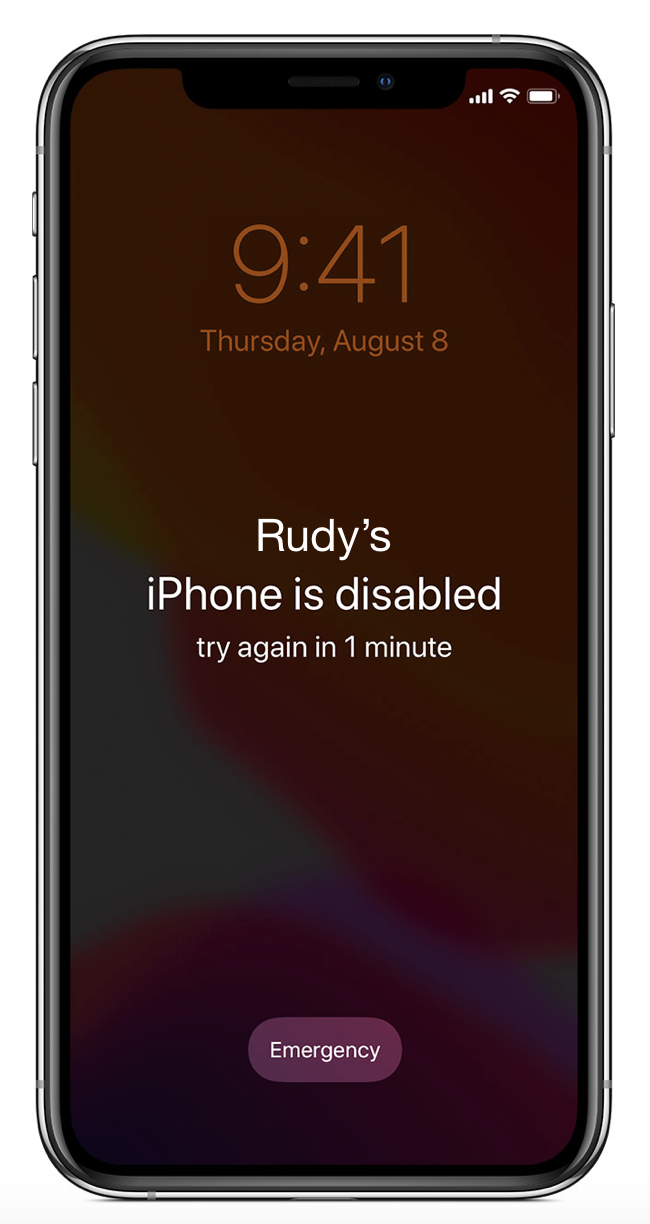
Rudy Giuliani Needed Apple Genius Help to Unlock His iPhone After Being Named Trump Cybersecurity Adviser

Rudy Giuliani, President Trump’s Cybersecurity Advisor, apparently had to go to the Apple Store to have his iPhone unlocked after he forgot his passcode. Giuliani confirmed this account, reported by NBC News’ Rich Schapiro, on his Twitter.

Forgive me for believing that nobody who is seventy five years old should be in any sort of IT or cybersecurity position. This gets right back to the issue of boomers not quite understanding what’s happening around them, yet remaining as cocky as ever.

As a former Apple Store Specialist, this was always the most annoying sort of customer to deal with, because in almost all cases, they knew nothing about the technology upon which they relied, other than that they could shuffle into an Apple Store to demand some person younger than them make it start working again after they’d forgotten something as elementary as a four-digit PIN. I can also vouch for the legitimacy of the photos presented by NBC: that really is what the internal system looks like on the iPad for technicians handling Genius Bar appointments.

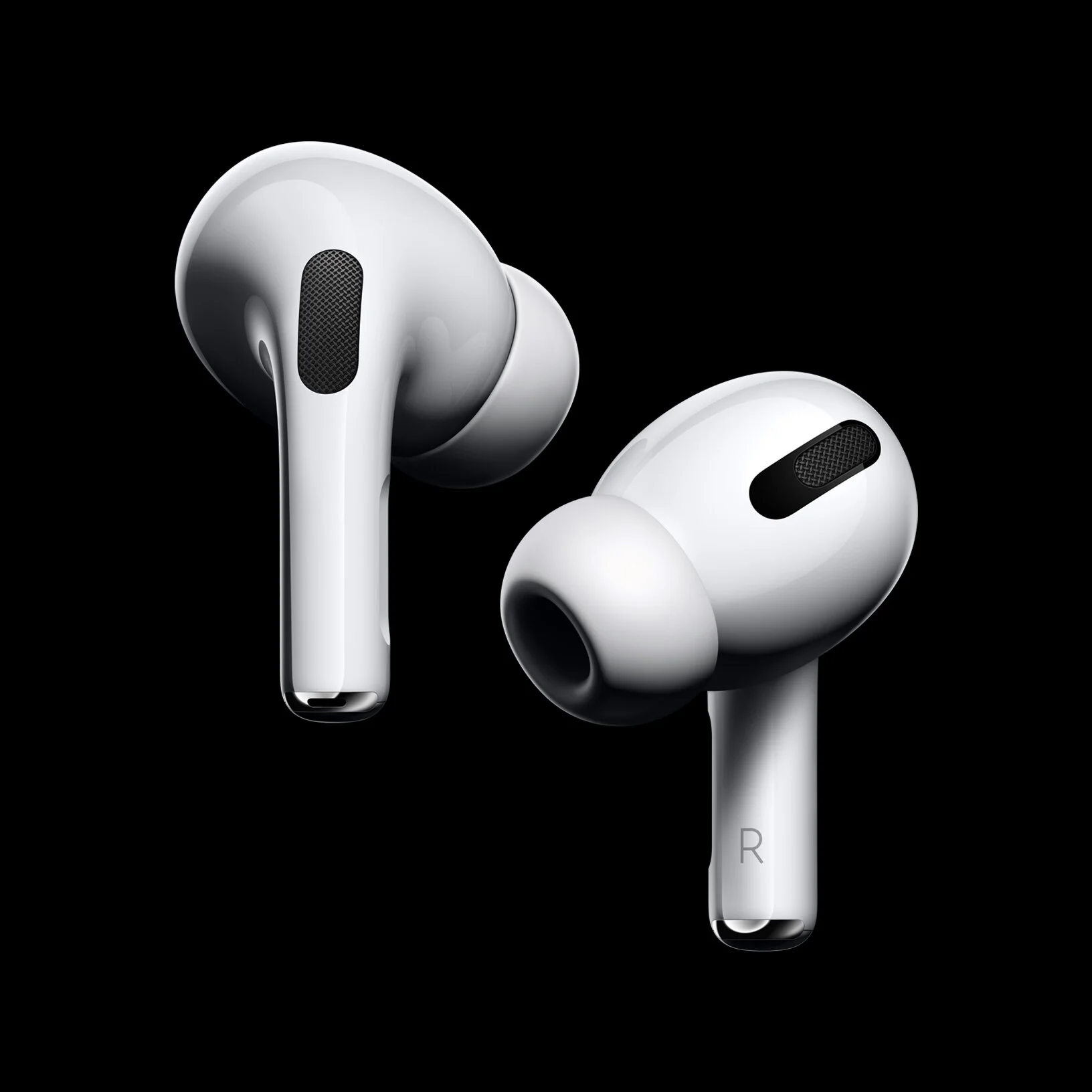
AirPods Pro
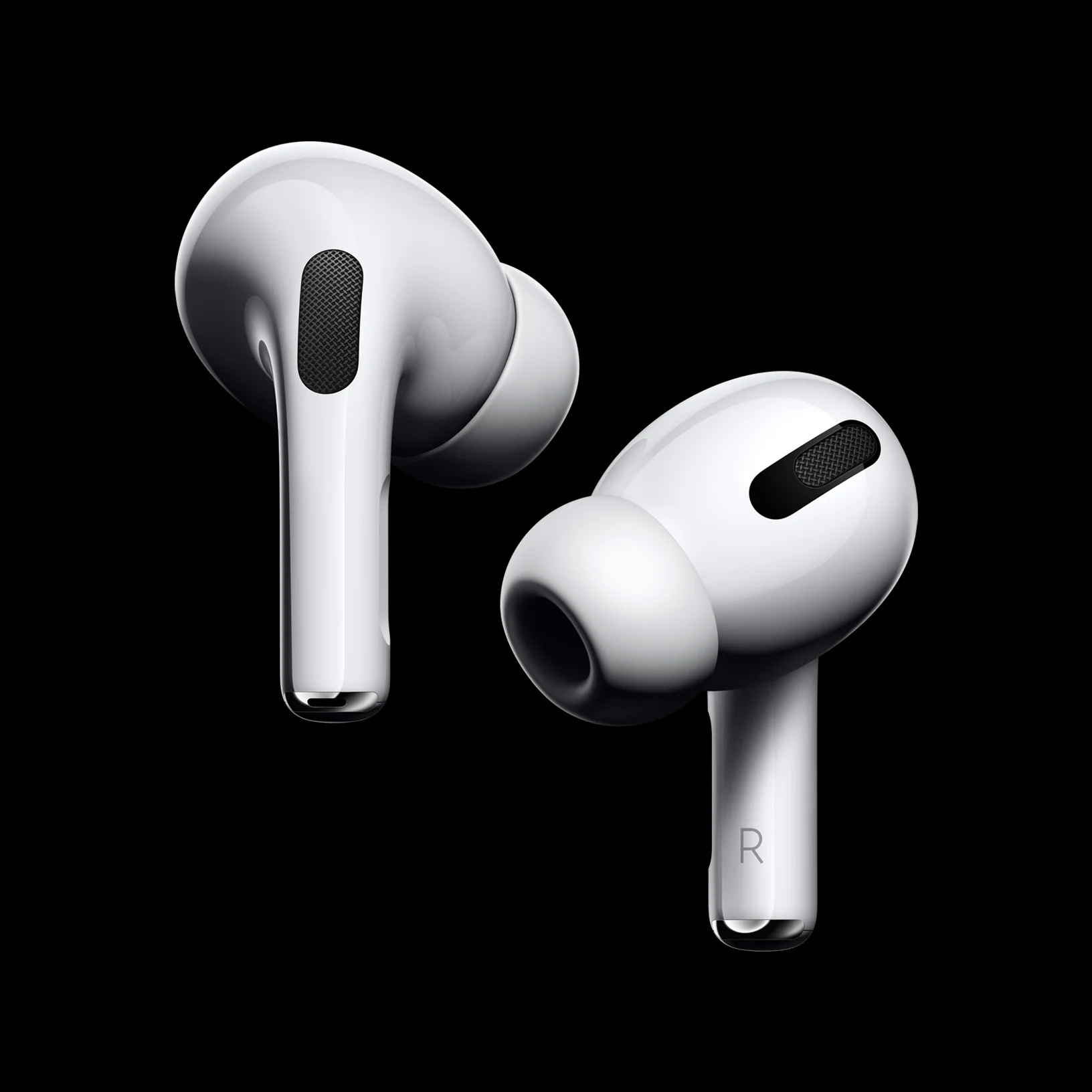
IMG_0918.jpeg

I was extremely skeptical and vocally critical of the AirPods Pro when they were first announced, but after testing them for twenty-four hours, I’ve completely changed my mind.

I’ve never had a terrific experience with noise canceling headphones, and I’ve never really found the foam/rubber tipped, in-ear style headphones to be comfortable, so those were my two primary concerns with AirPods Pro. I’m pleased to report that those are both non-issues.

The silicone tips have been designed in such a way that they snap onto the AirPods, rather than enveloping a metal or plastic barrel with a cylindrical tube of rubber or foam on the inside of the tips, as has been the case with every other pair of rubber or foam tipped headphones I’ve used. This design change allows the tips to provide a more natural seal, and they’re much more comfortable because they omit the hard metal or plastic at the center of the tip.

In regards to the noise cancellation, Apple offers two, equally impressive modes: noise cancellation, and transparency. The noise cancellation mode works extremely well, blocking out almost all of the noise in a crowded Starbucks. The transparency mode is more interesting, because it uses the microphones to transmit some of the sounds from your environment through to your ears, while blocking other sounds, so that I couldn’t hear the noise from fans in the gym, but I could clearly hear the guys clanking beside me. Transparency mode is great for listening to music in cases where you still want to be aware of your surroundings, like crossing the street or in a busy gym with lots of heavy objects moving about. The noise cancellation mode is great when you want to really get in the zone or want to relax a bit. The work they’ve done here is remarkable, and as John Gruber quips on Daring Fireball, it really is audio AR.

The force sensor on the stem of the AirPod is also far more responsive and easier to use than the previous generation’s double tap option for controlling Siri and music playback. It’s a very Apple-y feature.

I’m giving these new AirPods Pro a 9/10, because $250 is a bit expensive, but I was very impressed by the functionality and fit.

UPDATE: 11/4/19, 12:50;

Time seems to agree with me. They make some really good points in their review, and even remark that the AirPods Pro are Apple’s best product since the iPad.

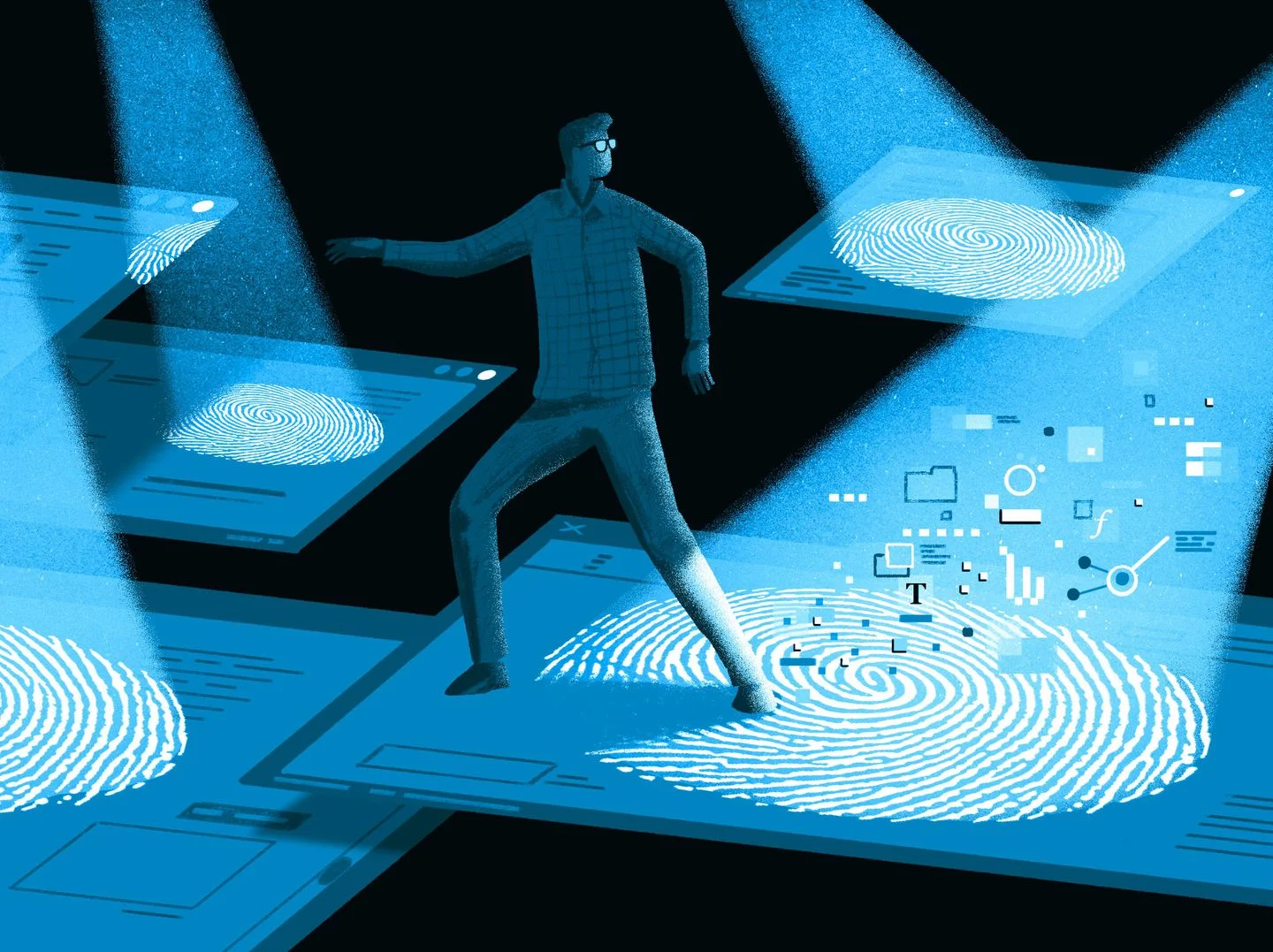
PSA: Online Fingerprinting Allows Websites To Track You

Geoffrey Fowler, writing for The Washington Post:

Fingerprinting happens when sites force your browser to hand over innocent-looking but largely unchanging technical information about your computer, such as the resolution of your screen, your operating system or the fonts you have installed. Combined, those details create a picture of your device as unique as the skin on your thumb.

This piece provides a good explanation of the predatory practice of online fingerprinting.

Unfortunately, there’s no clear answer on how to prevent websites from identifying you via fingerprinting, but some devices and web browsers are safer than others. As Fowler explains, Apple devices using the Safari browser are the most protected from this threat. If you have an iPhone, Mac, or iPad, you should definitely be using Safari — it’s already the fastest and most battery efficient browser for Apple products — because they’ve built in a lot of protections to keep users safe from fingerprinting. Fowler also points out that Google Chrome has almost no protections in place to prevent fingerprinting; if you use an Android phone or a Windows computer, you should use Firefox instead of Chrome as your default browser.

Also, props to Fowler for calling out his own publication for using fingerprinting on their website; that’s true, courageous journalism.